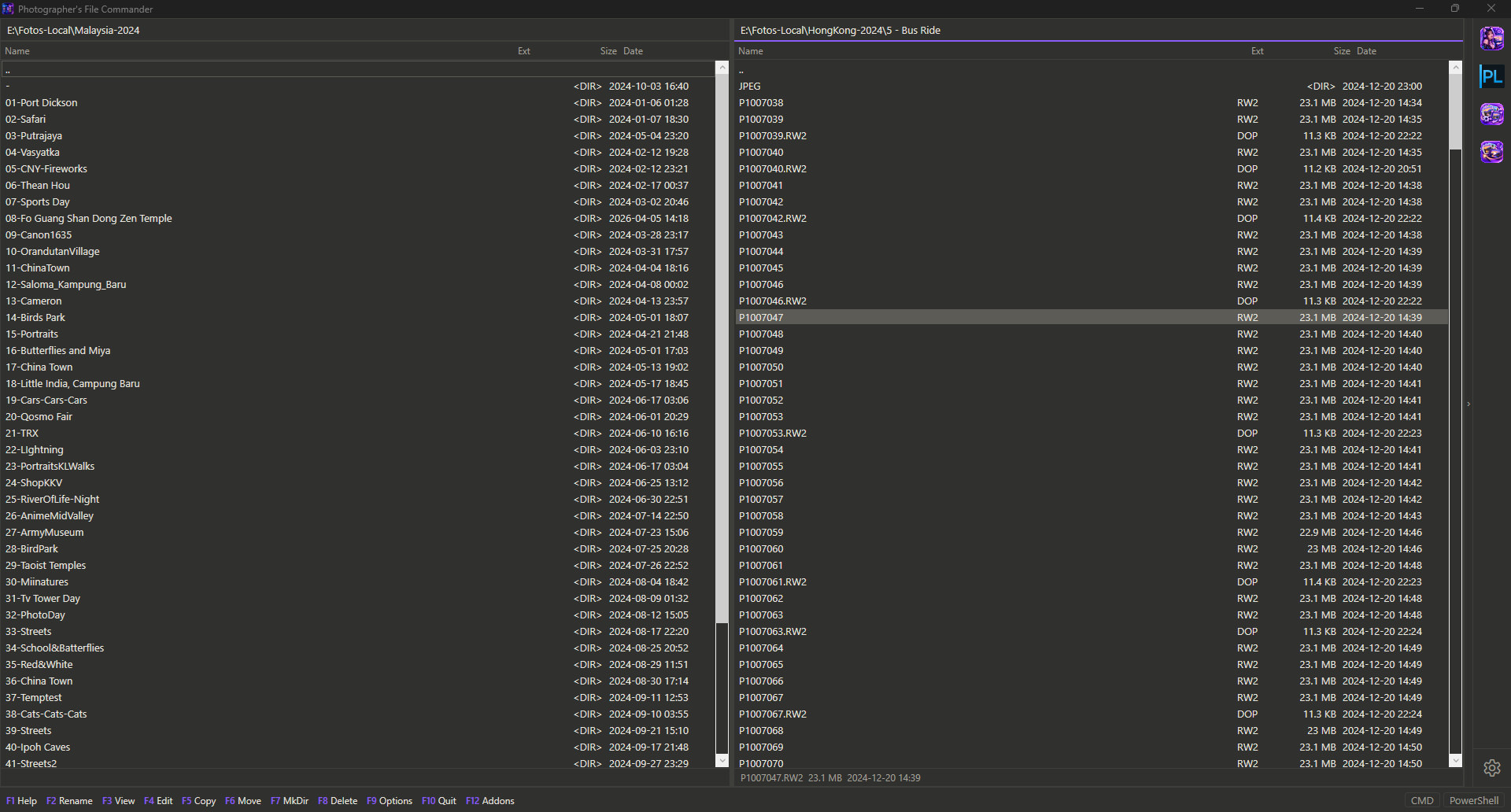
PFC: A file manager of my dreams.
Welcome to Alphatraveller. If you’ve been around here for a while, you know I’m Paul Elisarov — a traveller, a photographer, and a person who has lost enough articles to a dead SSD to treat every byte like a fragile souvenir. What you’re reading now is me rebuilding, article by article, and this one is a little different. It’s not about a city or a camera. It’s about a piece of software I built for myself, because no one else was going to build it the way I needed it. And it's free.Downloads
Full standalone application - requires nothing additional. Unzip it, double-click it, and get to work.
Minimal application - .NET 10 required for work. For those who like their tools lean and their runtimes already installed.
Addons in one archive - three of my own programs: CyberGreeting (startup video playing), PhotoPrepare (photo resizing and adding a signature), and VideoCreator (creation of video slideshows). Unzip them into "addons" folder in PFC folder and it will automatically connect them the next time it is started.
Why I built PFC (or: how I learned to stop worrying and love the keyboard)
I live in a two-panel world. I always have. And don't mean Yin Yang this time, hehe. When I’m culling hundreds of frames from a trip, say, the eight or nine times I’ve been to Beijing and completely lost count — the last thing I want is to take my hand off the arrow keys, find the mouse, right-click something, and lose my rhythm. I wanted a file manager that feels like a darkroom timer: immediate, tactile, and entirely under my fingers.
Photographer’s File Commander - PFC - is exactly that. It’s a two-panel file manager for Windows, built for working with photos from the keyboard. Mouse works too, don't be scared. The active panel has a purple line under its path. That’s the one most commands act on, and it’s where the cursor lives. The other panel is where copies and moves go. It sounds simple because it is. But simple is what you want when you’re staring at 4,000 files and trying to find the three that actually matter.
The culling flow that changed my life (slightly)
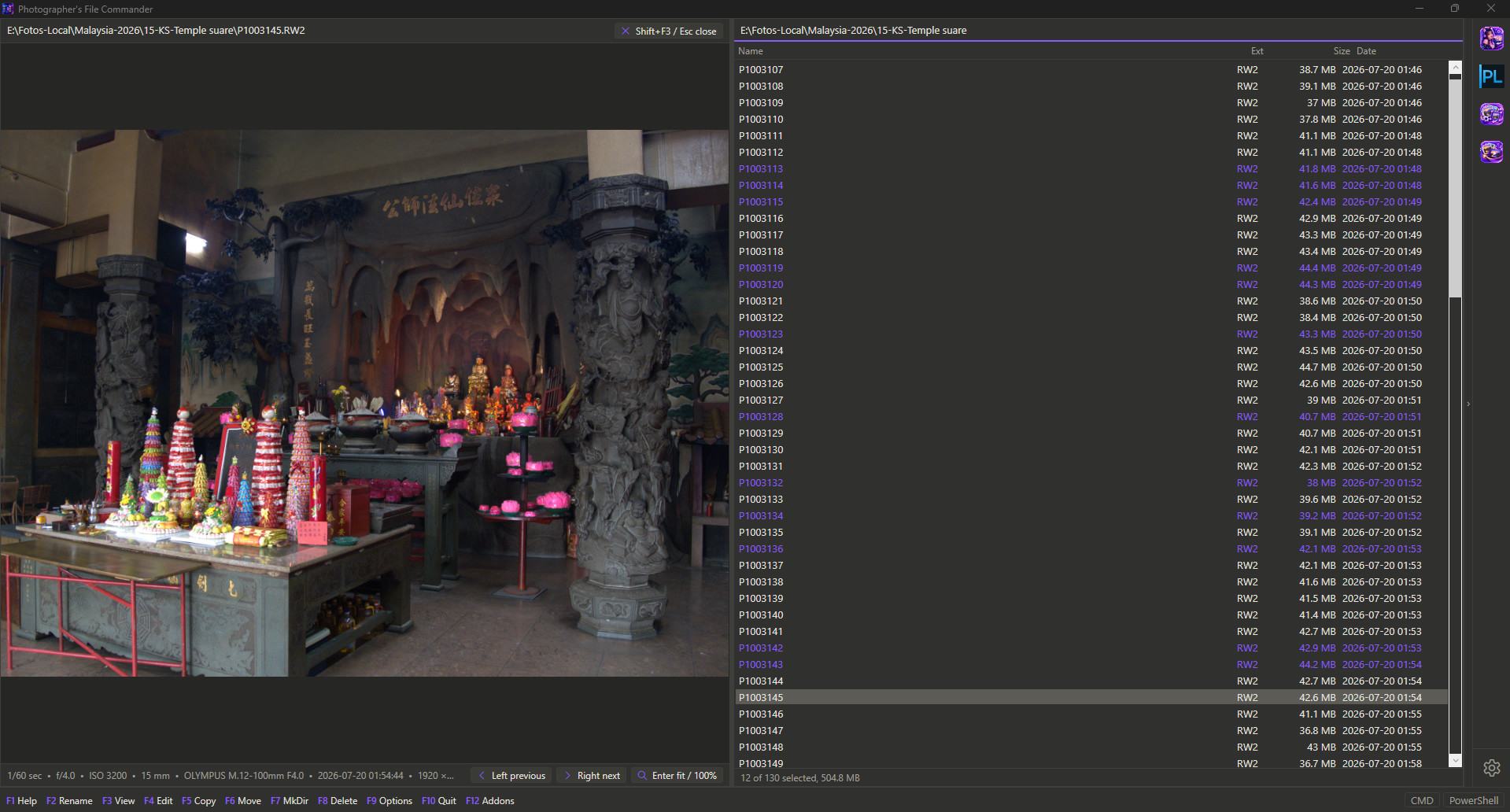
Here’s the part I’m genuinely proud of. Press Shift+F3, and the other panel becomes a quick view that follows the cursor. Pictures appear the moment the cursor stops — RAW files show their embedded JPEG preview, so there’s no waiting for a render. The next and previous photos are prepared in advance, so walking through a folder feels like flipping through prints. And here’s the thing: selecting a file doesn’t change what’s shown. So you can press Ins on every keeper without breaking the preview. Then you press F6, and the keepers move to the folder of the hidden panel. I’ve culled an entire trip’s worth of photos with one hand on the arrow keys and the other holding a cup of tea. That is a very specific joy.
RAW+JPEG pairs: because of course there are two files
If you shoot RAW+JPEG — or RAW with sidecar XMPs — you know the pain. Select one file, and suddenly you’ve got a family of files scattered across the panel. PFC pairs them. IMG_1234.CR3, IMG_1234.JPG, IMG_1234.xmp, IMG_1234.CR3.xmp — they all move together, rename together, and delete together. The line under the panel tells you who’s paired with whom. It’s on by default because, honestly, once you’ve used it, you’ll wonder how you lived without it.

Copy, move, and the verification ritual
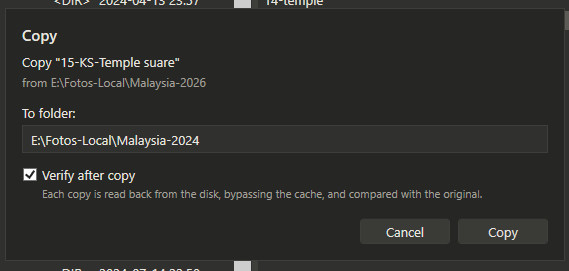
F5 and F6 show you exactly what’s happening: total size, target folder, and the name of every file being moved. I tested it on entire photos folder from Beijing - 90Gb of data - everything was ok. When a file already exists, PFC asks — Overwrite, Skip, or Rename — and shows you the size and date of both versions so you can make an informed decision instead of a panicked one.
And then there’s Verify after copy. This one is personal and oprional. After the SSD incident, I do not trust a transfer until I’ve read the copy back from disk, bypassing the system cache, and compared it byte for byte. PFC does that. If the copy differs, the bad copy is removed, the original stays untouched, and the file is reported as failed. A move to another drive deletes the original only after verification. A move within one drive is just a rename, so it skips the ceremony. It’s the digital equivalent of checking that your passport is still in your pocket. I like it.
Photography mode: the panel becomes a contact sheet
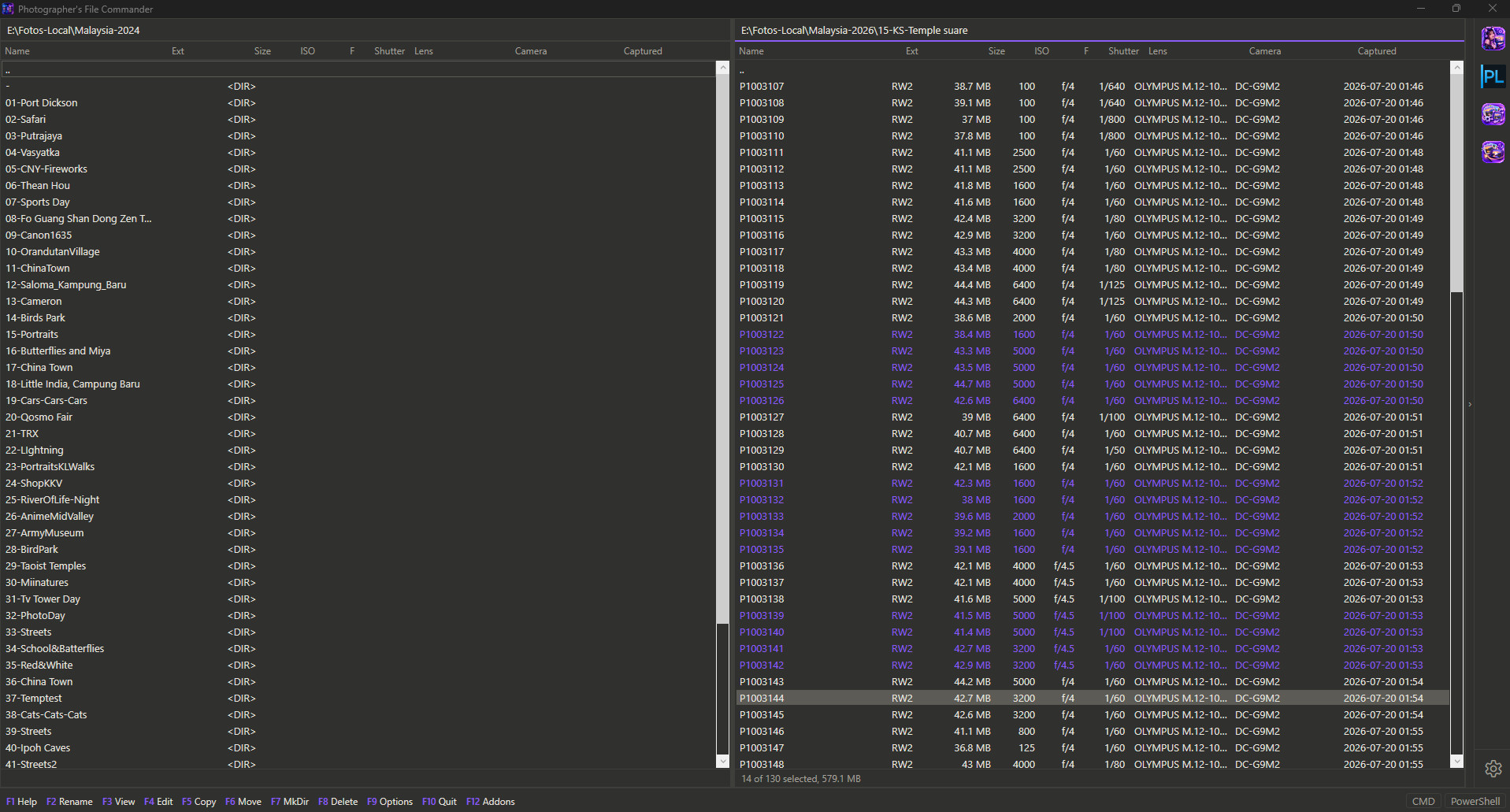
Turn on “Photography mode file info” in Options, and the panel columns change from Name/Ext/Size/Date to Name/Ext/Size/ISO/F/Shutter/Lens/Camera/Captured. The EXIF values are read in the background, so the panel doesn’t freeze in a folder with 10,000 images. It’s not a replacement for a proper DAM, but for sorting through a shoot and finding the frames shot at f/1.4 before the light died? It’s exactly enough.
The addons: three programs I actually use
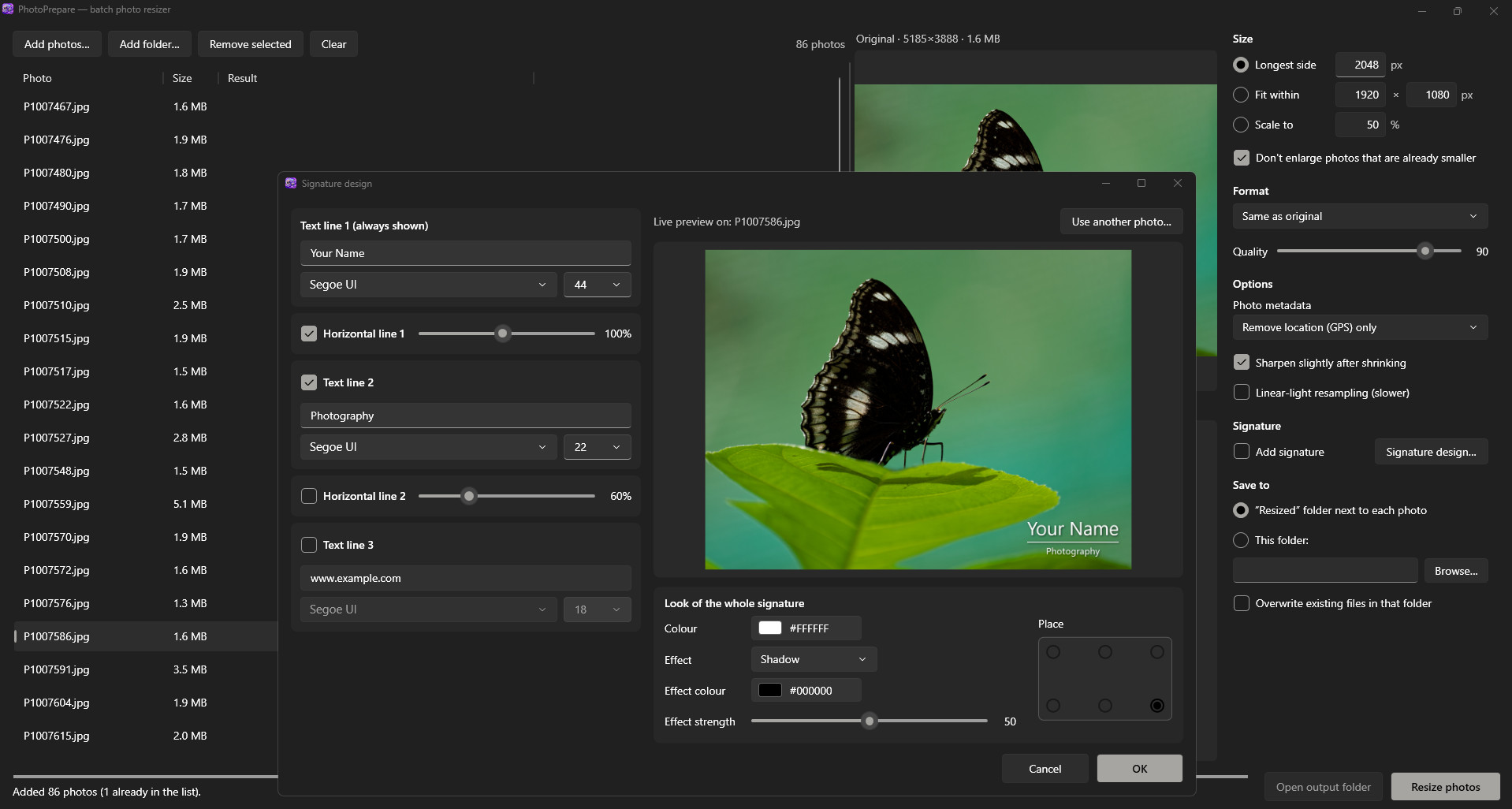
I’m not going to pretend I built an entire ecosystem. I built three tools I needed, and I bundled them in the addon strip. CyberGreeting plays a startup video, because I’m sentimental and I like a little ritual. It can handle 20 different greetings dependent on how long you were absent, what day it, what time it is, e.t.c. PhotoPrepare resizes (and does it properly!) photos and adds a signature — useful for preparing them for this site when I don’t want to open Photoshop for a five-second job. It's linked with PFC - will launch using your current folder! VideoCreator turns a folder of stills into a slideshow, which is how I share trip recaps with people who aren’t going to scroll through a gallery. These three live in the addons folder next to PFC.exe.
The little things
Alt+F3 shows every EXIF field of a picture, grouped as Camera, Lens, Exposure, Date and time, GPS, Image and Other. Typing filters the list. Ctrl+C copies the selected line. I use this more than I’d like to admit when I’m trying to remember what lens I had on for a particular frame.
F4 opens a text editor or a picture editor. The picture editor is a single pen for drawing arrows and circles on screenshots, with preset colors and a custom color. Save as a copy is green. Save as the same file is red. JPEGs save at quality 95 and keep their EXIF. Saving goes through a temporary file, so a failed save never damages the original. I learned that lesson the hard way, too.
And F9 opens Options, where you can hide hidden and system items, show executable files first, change the accent color, toggle pairing, and see exactly which addons were found and which were skipped. Settings live in settings.json next to PFC.exe, or in %AppData%\PFC if that folder isn’t writable. No registry, no database, no drama. Just a file you can copy.
A note on why this exists
I lost a decade of Alphatraveller site to an SSD failure — tens of gigabytes of images, reviews, and meticulously curated memories. Then I created this site... It was my first thing I created using AI. And it went so well that I could not stop! I have a programmer's education, but having so many hobbies as I do I never had time to code my own tools. But AI became my additional HANDS! So after this site I created a resize utility that is "just right" for me, then a video authoring tool, cyber greeting - a joke, but useful, now my PC greets me! And finally - the large project - PFC. A tool I always dreamt of, that works EXACTLY how I want it to work. It’s part of the overall rebuild: a tool that makes the next decade of files a little less fragile, a little faster to handle, and a little more mine. If you’re a photographer who lives in two panels and use hot keys a lot, as I do, I think you’ll like it too. So you're welcome to try!
P.S. Oh and I know this site needs a feedback feature. It's just... A big one, needs time... For now - use my theme on MFT forum.
8 views